Labware LIMS Basic Code Quality
Introduction
One major aspect of Quality in software projects is to keep track on changes that were made on the different systems.To know about changes and the object & source code and the differences (expected and unexpected ones) between the systems Development, Testing, Productive) help to keep code quality high.

Modules
Janus helps you to do so with different modules:- Package Explorer: Compare 2 systems on base of a Labware Package
- Objects Explorer: Compare Labware Objects of 2 systems by CHANGED_ON and CHANGED_BY
- Pattern Explorer: Search for occurrence of string literals and compare the objects of occurrence on 2 systems
- Generic Explorer: Compare any kind of Labware Object on 2 systems
Benefits
To know the differences between a source and a target system helps to- make reliable statements about what will happen when you install a package
- do more sophisticated redesign
- streamline testing cycles
- simply improve your package quality!
Basic selections

In this panel, you choose
- Source system: This is the system where the package is placed
- Target system: The system where the package shall be installed
- Only active: Whether only active packages or all the packages found on the source system shall be displayed
- Package: The package to load
Left of this dropdown the loaded package gets displayed. You can also add the package name manually - Search-button: Load the package.
Basic Object Overview
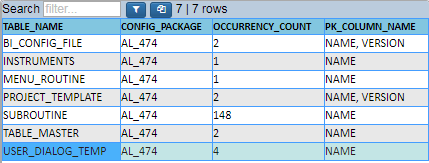
Here, you select the object class to be loaded. This may take a while - depending on the object count and the complexity of the loaded data.
Once the data is loaded, it is displayed below the Basic Object Overview.
Sometimes, the list of the object types is quite long. You can reduce the count of the rows by entering a search expression to filter the rows.
Object Table
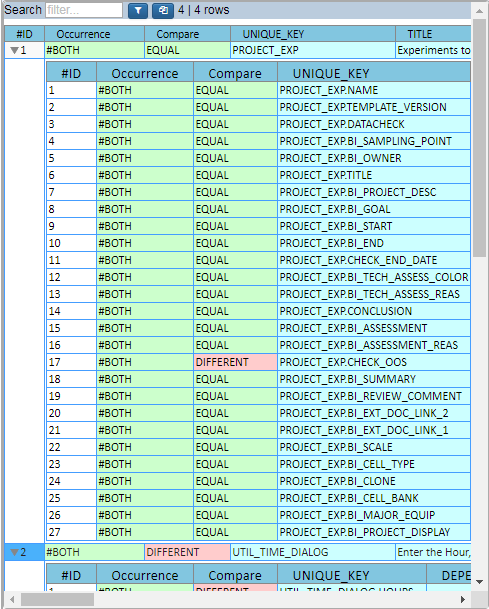
The table has some columns that describe the state of the object on both systems:
- The Column "Occurrence" says whether an item is only found on the source system, the target system or on both systems.
- The Column "Compare" says whether an object is identical by specific relevant columns on both systems.
- When an object is different it is displayed in red, other wise in green
- Not relevant are columns like this here
- CHANGED_ON
- CHANGED_BY
- VERSION